Let your agent use your browser
让助手使用您的浏览器
Your agent can work in your own Chrome or Edge: open pages, read them, fill in forms and click through sites where you're already signed in. You add one browser extension and paste one link. It takes about three minutes.
您的助手可以直接在您自己的 Chrome 或 Edge 浏览器里工作:打开网页、阅读内容、填写表单,并在您已登录的网站上完成操作。您只需安装一个浏览器扩展、粘贴一个链接,大约三分钟即可完成。
- A computer (Windows, Mac or Linux)
- Google Chrome or Microsoft Edge
- Your Command Center login
- 一台电脑(Windows、Mac 或 Linux)
- Google Chrome 或 Microsoft Edge 浏览器
- 您的控制台(Command Center)登录账号
-
Install the BrowserSkill extension
安装 BrowserSkill 扩展
Open the store for your browser and click Add to Chrome (or Get in Edge). It's free.
打开对应浏览器的扩展商店,点击 添加至 Chrome(Edge 中为 获取)。扩展是免费的。在中国大陆建议使用 Edge,因为 Chrome 应用商店通常无法打开。
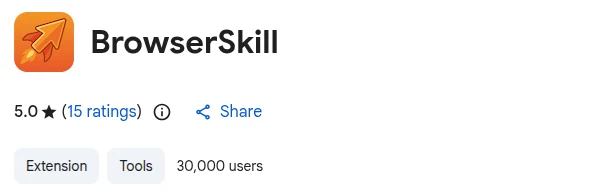
Look for the orange rocket icon. 
认准橙色火箭图标。 Then click the puzzle-piece icon at the top right of your browser and pin BrowserSkill, so its icon stays in the toolbar.
安装后,点击浏览器右上角的拼图图标,把 BrowserSkill 固定到工具栏,方便以后点击。
-
Get your pairing link
获取配对链接
Sign in to your Command Center. Under Connect your agent, find the Browser access card and click Get pairing link, then Copy link.
登录您的控制台。在 关联您的助手 下找到 浏览器访问 卡片,点击 获取配对链接,再点击 复制链接。
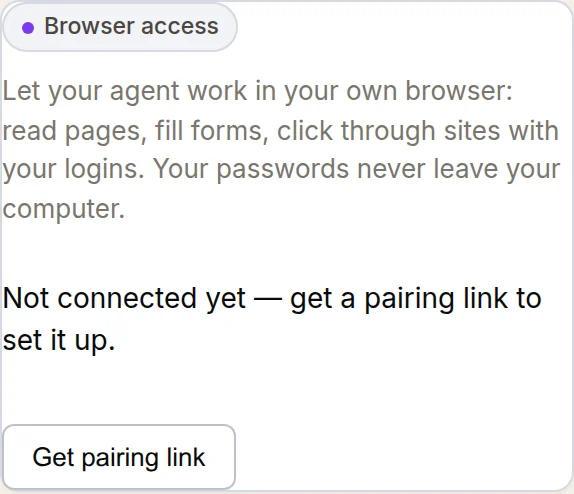

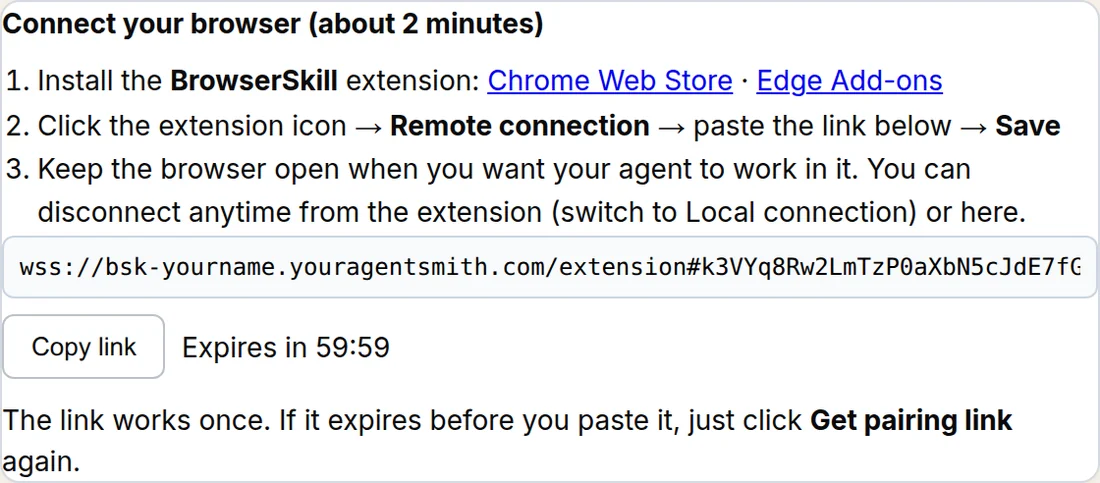
The link is private and works once. The countdown shows how long it stays valid. If it runs out, click Get pairing link again. 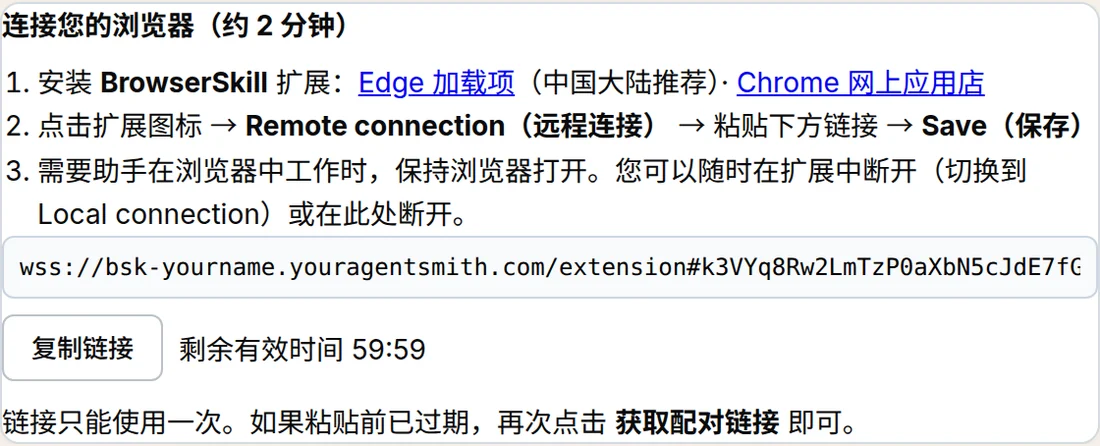
此链接仅供您本人使用,并且只能使用一次。倒计时显示剩余有效时间;过期后再次点击 获取配对链接 即可。 If the card says browser access isn't switched on for your agent yet, message us and we'll turn it on.
如果卡片提示您的助手尚未开通浏览器访问,请联系我们为您开通。
-
Paste the link into the extension
把链接粘贴到扩展中
Click the BrowserSkill icon in your toolbar. Open Connection settings, choose Remote, paste the link into Pairing link, and click Save pairing.
点击工具栏中的 BrowserSkill 图标,展开 连接设置,选择 远程,把链接粘贴到 配对链接 输入框,然后点击 保存配对。
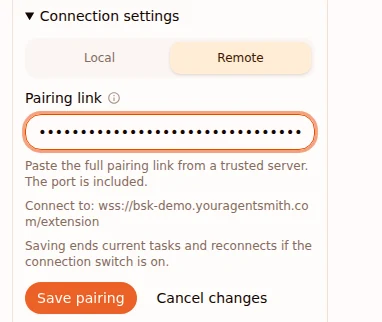
The link shows as dots, like a password. That's normal. 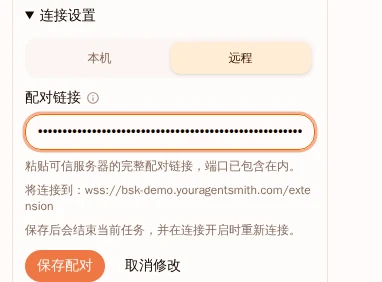
链接会像密码一样显示为圆点,这是正常的。 -
Check it's connected
确认已连接
After a few seconds the extension shows a green Connected and a line starting with Remote and your agent's address. Give the browser a name under Browser name, for example "Home laptop", and click Save. The name tells your agent which browser is which if you connect more than one.
几秒钟后,扩展会显示绿色的 已连接,下面一行以 远程 开头,后面是您助手的地址。在 浏览器名称 中给这个浏览器起个名字(例如“家里的笔记本”),点击 保存。如果您连接了多个浏览器,助手可以靠名字区分它们。
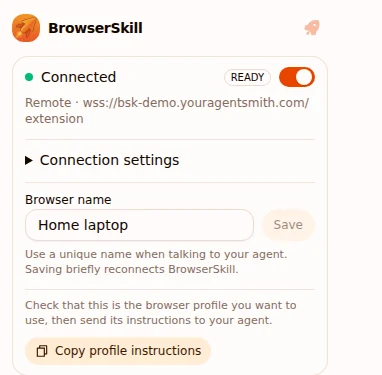
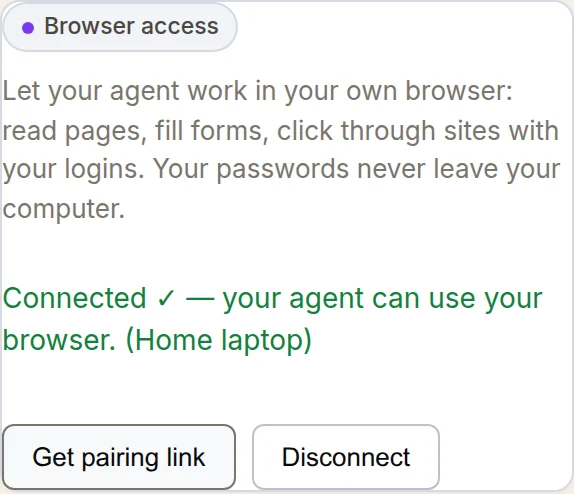
Your Command Center shows the same thing. 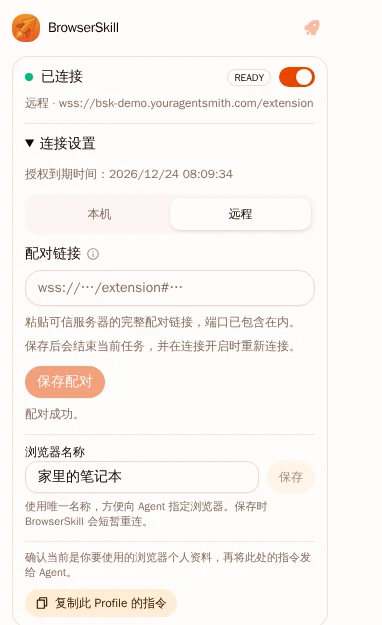
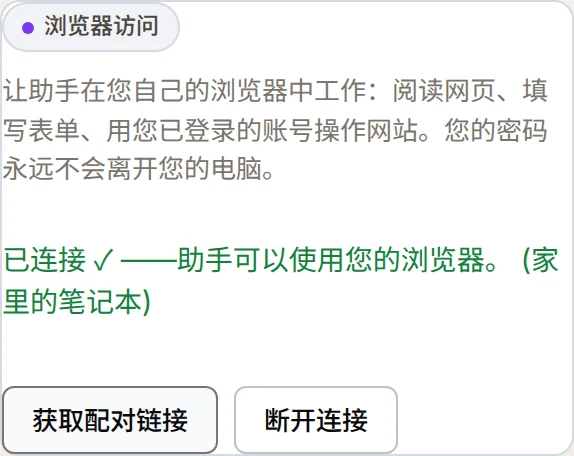
控制台中也会显示已连接。 -
Ask your agent
向助手提出请求
On Telegram, WeChat, the web chat or the desktop app, just tell your agent what to do in your browser. For example:
在 Telegram、微信、网页聊天或桌面应用里,直接告诉助手要在浏览器里做什么。例如:
- "Use my browser to check the weather in Kuala Lumpur for this weekend."
- "Open my Shopee cart and tell me the total with shipping."
- "Fill in this form with my company details, but don't submit it."
- “用我的浏览器查一下吉隆坡这个周末的天气。”
- “打开我的淘宝购物车,告诉我含运费一共多少钱。”
- “用我公司的信息填好这个表单,但先不要提交。”
Done. You only do this once per browser. It stays paired for 90 days and renews itself while you use it, so a restart or a closed laptop doesn't need a new link.
完成。每个浏览器只需设置一次。配对有效期为 90 天,使用期间会自动续期,所以重启浏览器或合上电脑后都不需要新链接。
What you'll see while it works
助手工作时您会看到什么
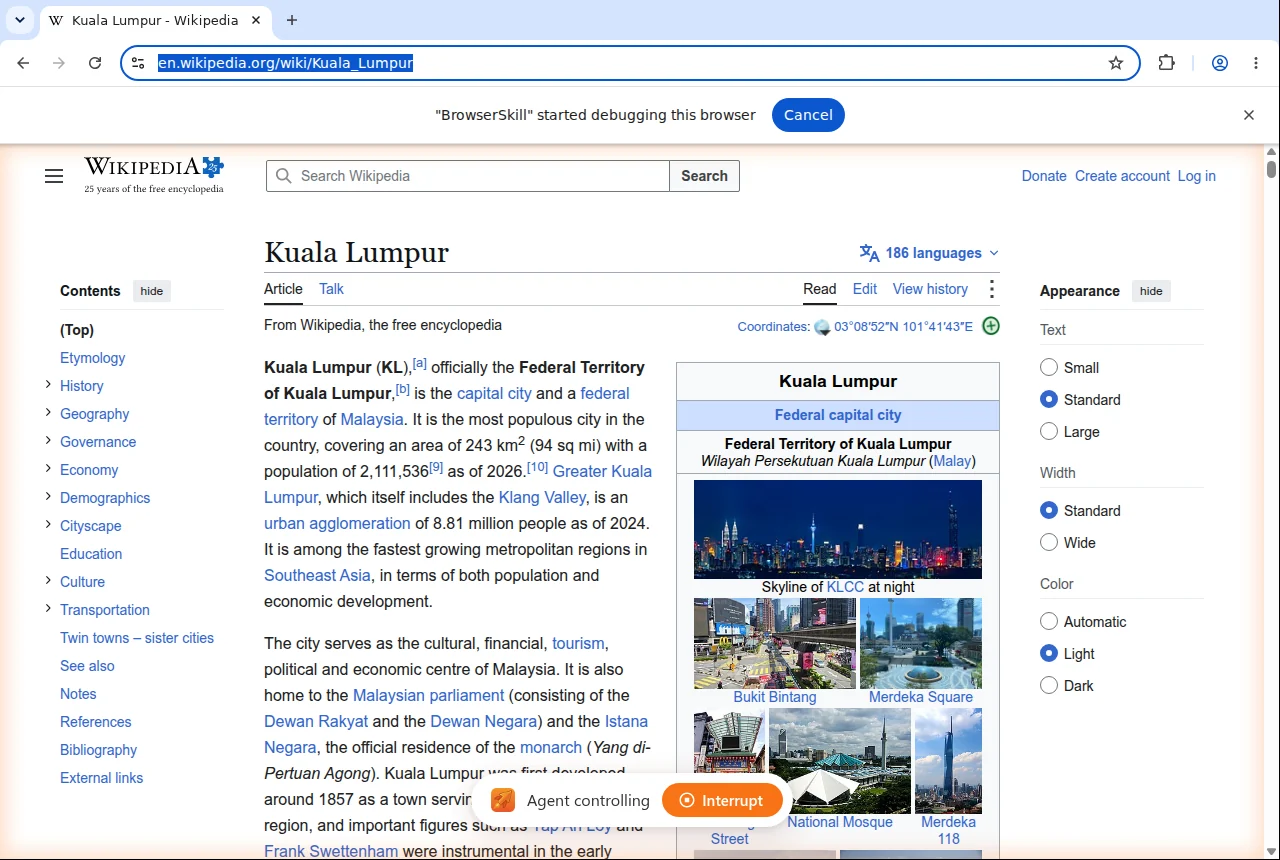
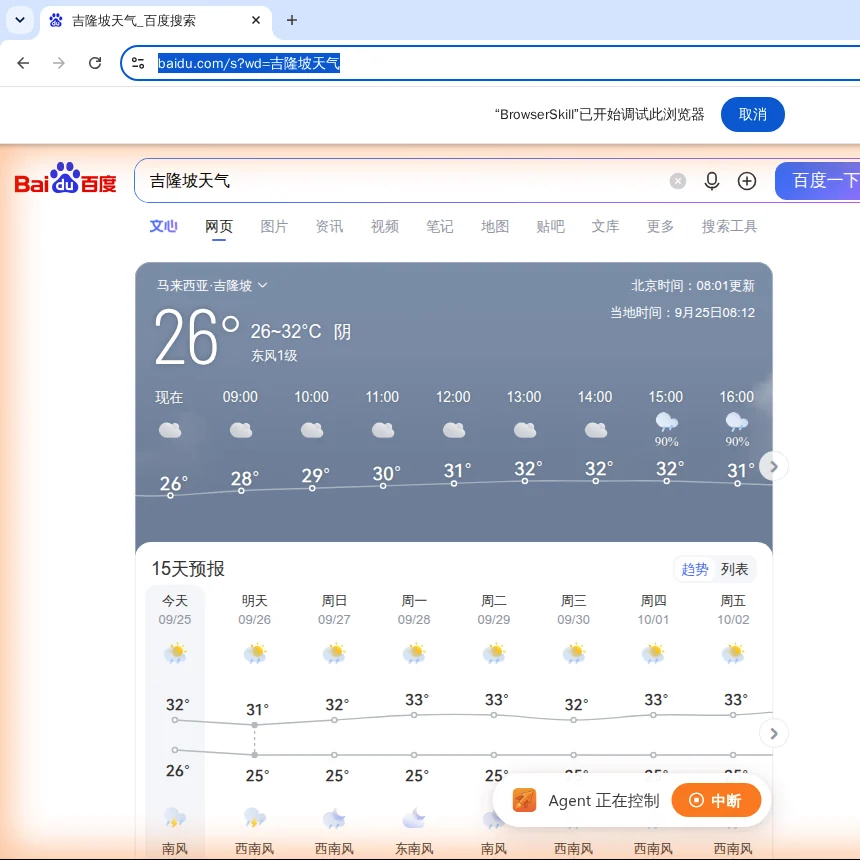
Your browser shows a bar saying "BrowserSkill" started debugging this browser, the page gets an orange glow, and a pill at the bottom reads Agent controlling. That's how you know your agent is at the wheel. Click Interrupt on the pill to stop it at any moment.
浏览器顶部会出现 “BrowserSkill”已开始调试此浏览器 的提示条,页面四周出现橙色光晕,底部显示 Agent 正在控制。这表示助手正在操作。随时点击其中的 中断 即可让它停下。
When your agent needs you
当助手需要您帮忙时
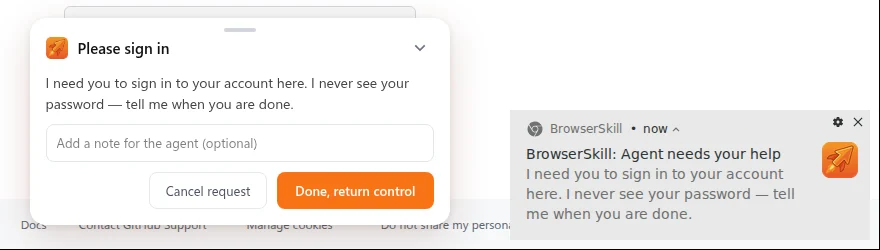
Some steps are yours: signing in, a captcha, a payment confirmation. Your agent pauses and a panel appears on the page, plus a notification on your computer. Do the step yourself, then click Done, return control. Your agent carries on from there, without ever needing your password.
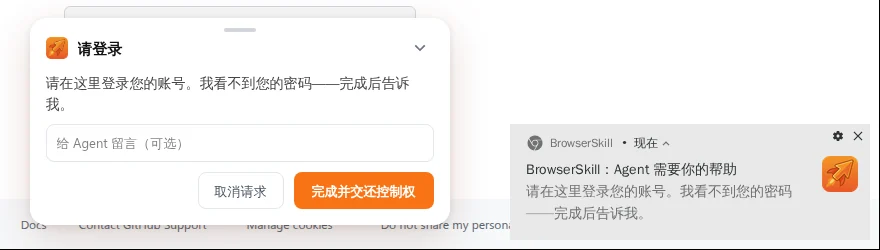
有些步骤需要您亲自完成,比如登录、验证码或付款确认。这时助手会暂停,页面上弹出一个面板,电脑上也会收到通知。您完成这一步后,点击 完成并交还控制权,助手就会继续,全程不需要知道您的密码。
Your passwords stay on your computer
您的密码只留在您的电脑上
- Your agent uses the sites you're already signed in to, but your passwords and cookies never leave your browser.
- It only works while your browser is open and you can always see it working.
- By default it asks before it borrows a tab you already have open. You can change that under Automation settings in the extension.
- To cut the connection, click Disconnect on the Browser access card in your Command Center, or switch the extension off with its toggle.
- 助手会使用您已登录的网站,但您的密码和 Cookie 永远不会离开您的浏览器。
- 只有在浏览器打开时助手才能工作,而且您随时都能看到它在做什么。
- 默认情况下,助手借用您已打开的标签页前会先征求您的同意,您可以在扩展的 自动化设置 中调整。
- 要断开连接,请在控制台的浏览器访问卡片上点击 断开连接,或用扩展里的开关将其关闭。
If something's not right
遇到问题怎么办
- My agent says no browser is connected.
- Open Chrome or Edge on your computer and make sure it's awake. Click the BrowserSkill icon: it should say Connected with Remote underneath. If the switch at the top is off, turn it on.
- The extension says Local instead of Remote.
- Open Connection settings and choose Remote again. If it asks for a link, get a new one from your Command Center.
- "Save pairing" fails or the link is refused.
- Each link works once and expires. Click Get pairing link in your Command Center for a fresh one and paste it straight away.
- I got a new computer or use a second browser.
- Install the extension there and get a new pairing link for it. Each browser pairs separately; give each one its own name.
- Someone told me to install a "bsk" program or run a Terminal command.
- You don't need that. Those steps are for people who run the agent on their own computer. Yours runs on our servers; the extension is all you need.
- 助手说没有已连接的浏览器。
- 请在电脑上打开 Chrome 或 Edge,并确保电脑没有休眠。点击 BrowserSkill 图标,应显示 已连接,下面是 远程。如果顶部开关是关闭的,请打开。
- 扩展显示“本机”而不是“远程”。
- 展开 连接设置,重新选择 远程。如果需要链接,请在控制台获取一个新的。
- 点击“保存配对”失败,或链接被拒绝。
- 每个链接只能使用一次,并且会过期。请在控制台点击 获取配对链接 获取新链接,然后立即粘贴。
- 我换了新电脑,或想再连接一个浏览器。
- 在那台电脑或浏览器上安装扩展,并为它获取一个新的配对链接。每个浏览器需要单独配对,请分别起个名字。
- 有人让我安装“bsk”程序或在终端里输入命令。
- 您不需要这样做。那些步骤是给在自己电脑上运行助手的人用的。您的助手运行在我们的服务器上,只需要安装这个扩展即可。
Good to know
注意事项
- Works in Chrome and Edge on a computer. Safari, Firefox and phones aren't supported.
- Your agent keeps running when your browser is closed. It just can't use the browser until you open it again.
- Disconnect in the Command Center removes every paired browser at once. You can pair again any time.
- BrowserSkill is an open-source extension made by Tencent. Your AgentSmith agent connects to it over an encrypted link.
- 支持电脑上的 Chrome 和 Edge,不支持 Safari、Firefox 和手机。
- 浏览器关闭时助手照常运行,只是在您重新打开浏览器之前无法使用它。
- 控制台中的 断开连接 会一次移除所有已配对的浏览器,之后可随时重新配对。
- BrowserSkill 是腾讯开发的开源扩展,您的 AgentSmith 助手通过加密连接与它通信。